How to connect Mindray BC-5800 with MedX Automation
MedX Automation connects with the Mindray BC-5800 hematology analyzer using TCP/IP communication via the Ethernet port on the machine. You will need an Ethernet cable to connect the machine to the same network as the computer running the Automation application.
This guide assumes you have already installed the Automation application and added the Mindray BC-5800. See How to connect medical devices with MedX Automation for more details.
Connecting via Ethernet
Connect an Ethernet cable from the network port of the BC-5800 to a network switch or router that is on the same network as the computer running the Automation application.
Both the BC-5800 and the computer running MedX Automation must be on the same local network. If you are unsure, contact your network administrator.
Network Configuration on the BC-5800
- From the main menu, tap Setup.
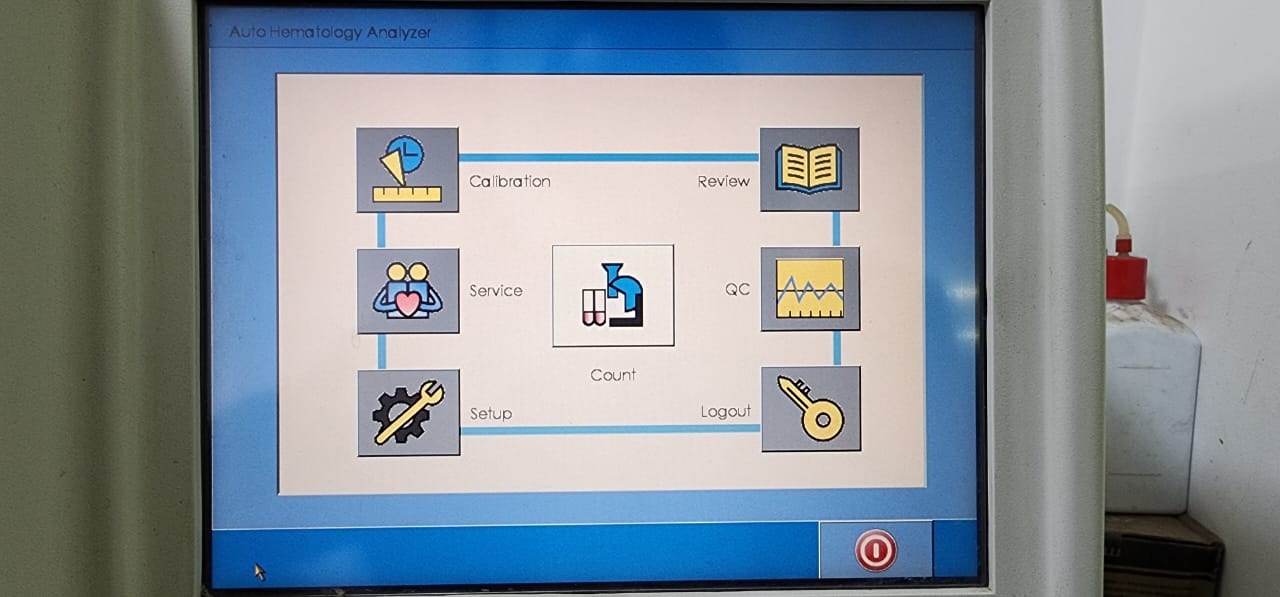
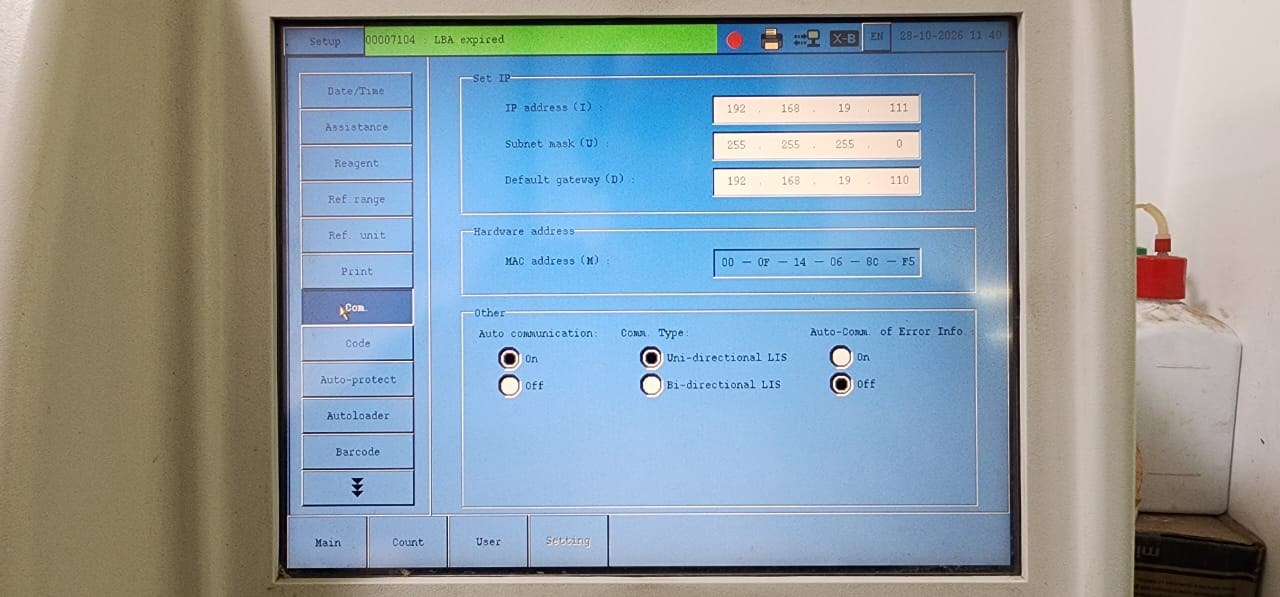
- In the list on the left, tap Com. to open the communication setup screen.
- Under Set IP, enter a valid IP address, Subnet mask and Default gateway for your network. Contact your network administrator for appropriate values. Take note of the IP address, as you will need it when configuring the Automation application.
- Under Other, set the following values:
| Setting | Value |
|---|---|
| Auto communication | On |
| Comm. Type | Uni-directional LIS |
| Auto-Comm. of Error Info | Off |
Configuring the Automation Application
- In the Automation application, locate the Mindray BC-5800 machine entry and select TCP Server as the connection method.
- Enter the IP Address of the BC-5800 as configured on the machine. Use
5500for Port.
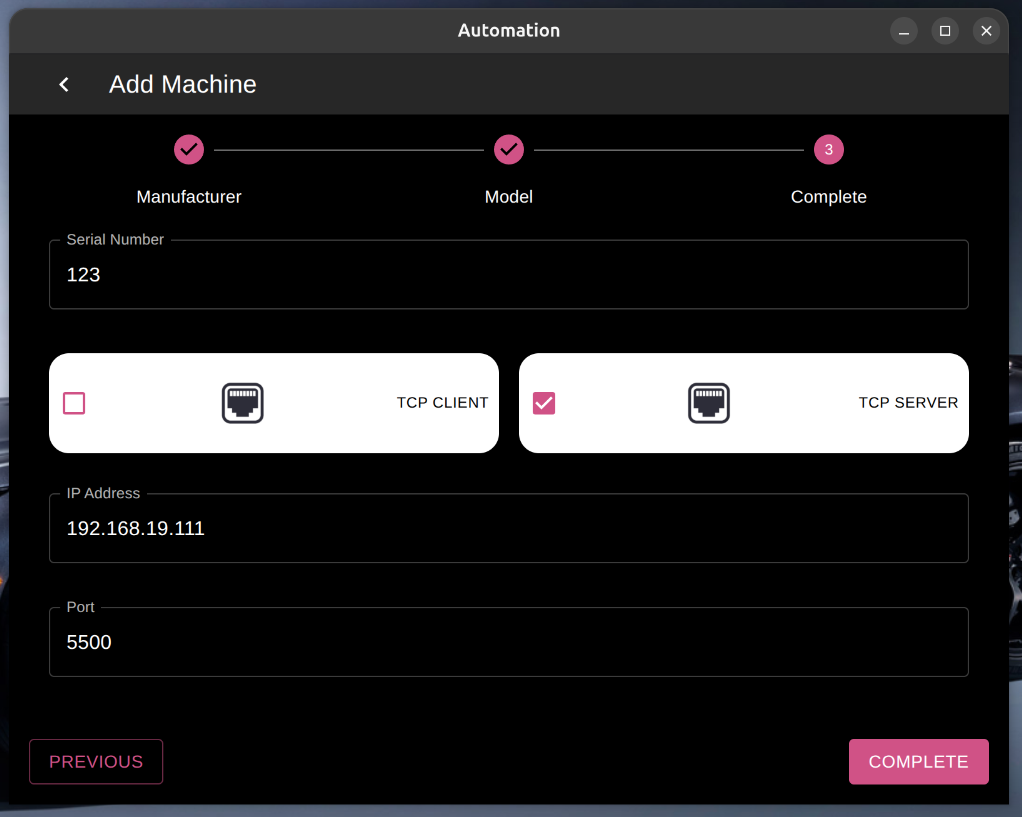
- Once connected, the status should change from PENDING to CONNECTED. You can then proceed to send results from the machine.
With TCP Server, the BC-5800 acts as the server and the Automation application connects to it as a client. Ensure the IP address in the application matches the value configured on the BC-5800.
Sending Results
With Auto communication set to On, each completed sample is sent to the Automation application automatically.
To send results that were run earlier, or to resend results:
Check the host communication indicator in the status bar at the top of the BC-5800 screen before sending. While it is still red, the analyzer is not connected to the Automation application and the Com. button is greyed out. Wait until the status in the Automation application shows CONNECTED and the indicator is no longer red.
- From the main menu, tap Review to open the sample database.
- Select the sample result(s) you want to transmit.
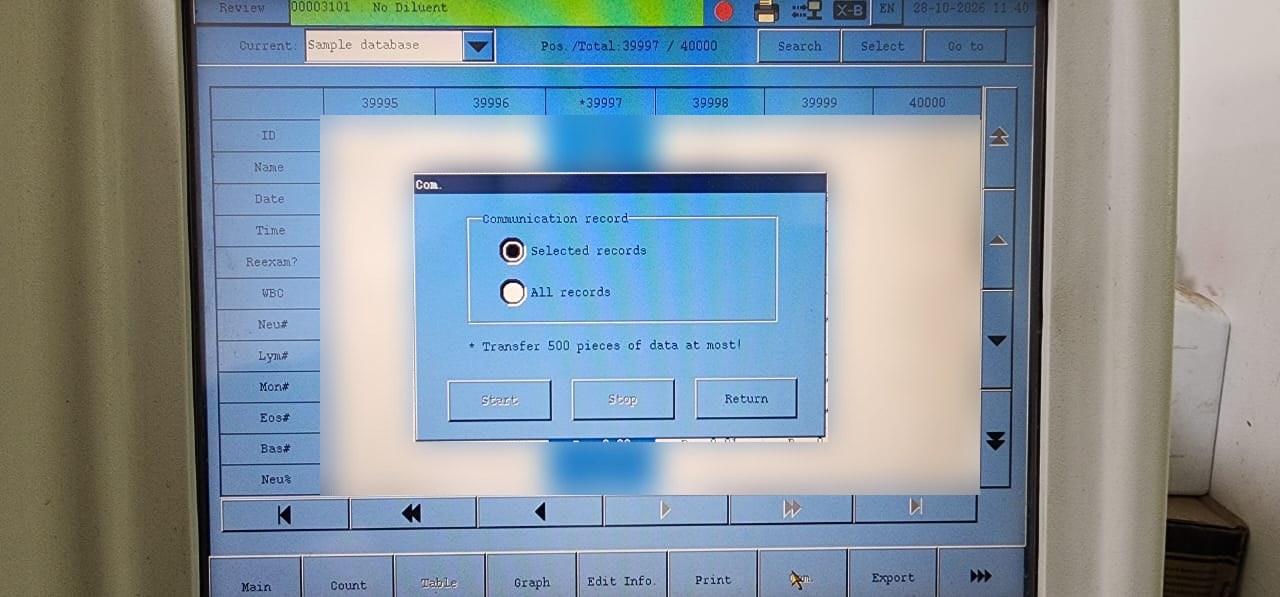
- Tap the Com. button on the bottom toolbar. A dialog box will appear.
- Select Selected records to transmit only the highlighted samples, or All records to transmit every result. The analyzer transfers at most 500 records at a time.
- Tap Start to begin transmission.
- The results should appear in the Results tab of the Automation application.
Troubleshooting
No data received in the Automation application
- Verify the Ethernet cable is firmly connected to both the machine and the network switch or router.
- Confirm the BC-5800 and the computer are on the same local network. Verify the computer can ping the BC-5800.
- Ensure the IP address and port entered in the Automation application exactly match those configured on the BC-5800.
- Check that no firewall on the computer is blocking the connection on the configured port.
Com. button is greyed out
- The host communication indicator on the BC-5800 is still red, which means the Automation application has not connected yet. Follow the steps under Status remains PENDING below.
Status remains PENDING
- The Automation application connects to the BC-5800 as a TCP client. If the status remains PENDING, the machine may not be reachable. Verify the IP address is correct and the machine is powered on.
- Try pinging the BC-5800's IP address from the computer to confirm network connectivity.
- Ensure no other application or LIS is already connected to the BC-5800.