How to connect Abbott Afinion 2 with MedX Automation
Automation connects with B&E's Hemax Series via Serial for older models using their properietary comma separated format and TCP/IP for newer models using the HL7 communication protocol.
✅ Before you begin:
- Ensure the Automation app is installed and running on a computer connected to the same network as the Afinion 2.
- The Hemax device must already be added as a device in the Automation app.
See: How to connect medical devices with MedX Automation
Using Network Communication
Configuring Communication Settings
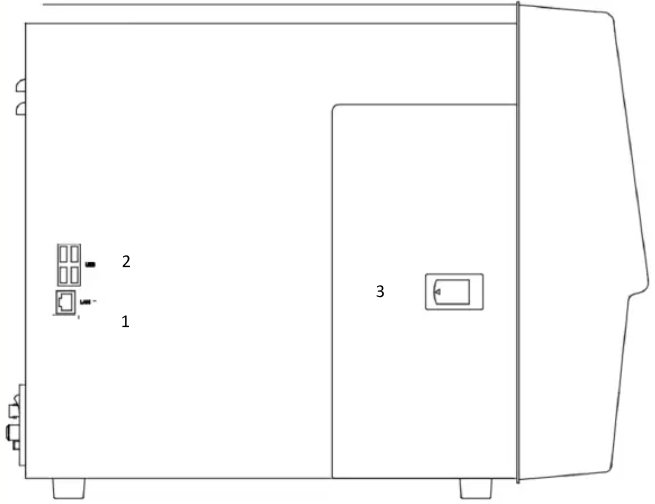
Plug an Ethernet cable already connected to your network into Port 2 on the analyzer, as shown below. The exact position may vary based on the exact model.
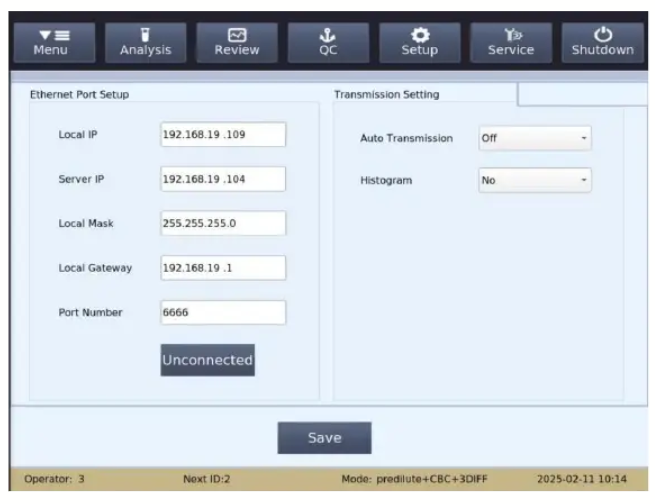
Select "Setup" > "System Setup" > "Communication" from the drop-down menu to enter the interface shown below.
- Provide an IP address that is unused on your network as Local IP, a valid subnet mask as Local Mask, a valid gateway address as Local Gateway. Contact the network administrator in your facility to guide with this if you're not sure.
- Set Server IP and Port Number as shown in the Automation app for the Hemax device.
- Enable Auto Transmission and set Histogram to Yes
Sending Results
- If Auto Transmission is enabled, all new completed test results will be automatically transmitted to Automation.
- To send results manually, select the result record you want to send and select Transmit, and click Ok on the dialog to send results to the Automation app
Using Serial Communication
Connecting
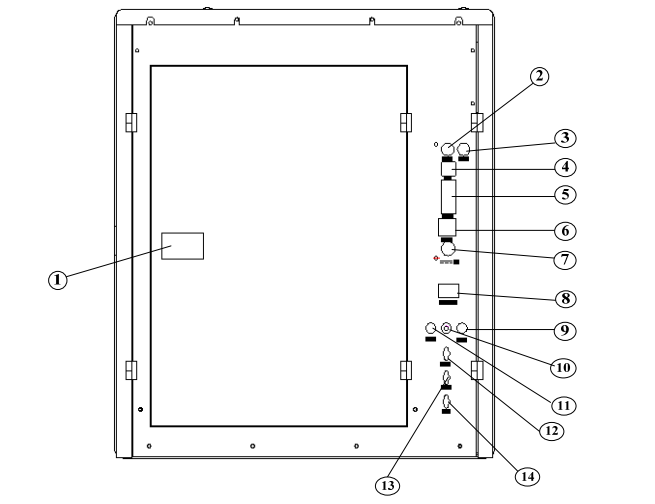
Plug a serial cable attached to the same computer running the Automation app into the device serial port (5). The exact position of the port may vary based on the specific model.
Configuration
In main screen, click Setting. On this page, enable Transmit Instantly
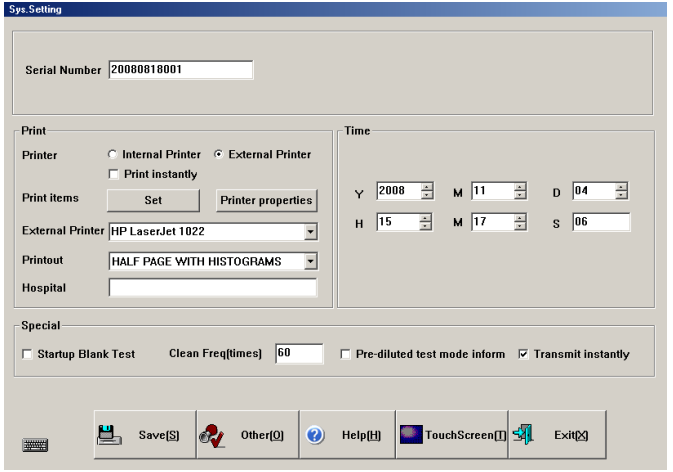
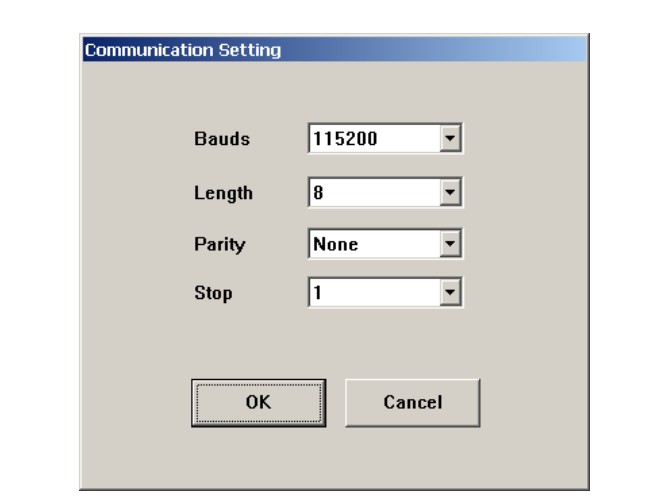
Continue to Other > Communication to access the dialog as shown below. Set the configuration as follows;
- Baud Rate to 115200
- Length also known as Databits to 8
- Stop also known as Stop Bits to 1
- Parity to none
Send Results
- After sample test, the result will transfer to the Automation app automatically
- Select the results you want to send and click send, A dialog preset to send selected tests will appear, click Send to trasmit results into the Automation app