How to connect Mindray BC-30s with MedX Automation
MedX Automation connects with the Mindray BC-30s hematology analyzer using TCP/IP communication via the Ethernet port on the rear panel of the machine. You will need an Ethernet cable to connect the machine to the same network as the computer running the Automation application.
This guide assumes you have already installed the Automation application and added the Mindray BC-30s. See How to connect medical devices with MedX Automation for more details.
Connecting via Ethernet
The Mindray BC-30s uses TCP/IP communication. Locate the Network interface (labelled 2 in the diagram below) on the rear panel of the BC-30s and connect an Ethernet cable from the machine to a network switch or router that is on the same network as the computer running the Automation application.
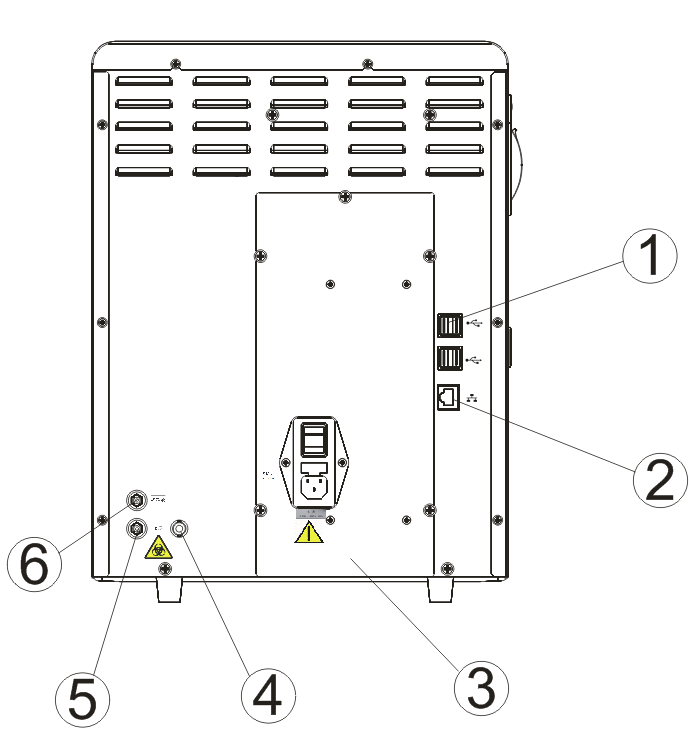
Both the BC-30s and the computer running MedX Automation must be on the same local network. If you are unsure, contact your network administrator.
Network Configuration on the BC-30s
Configure the network settings on the BC-30s so it has a valid IP address on your local network:
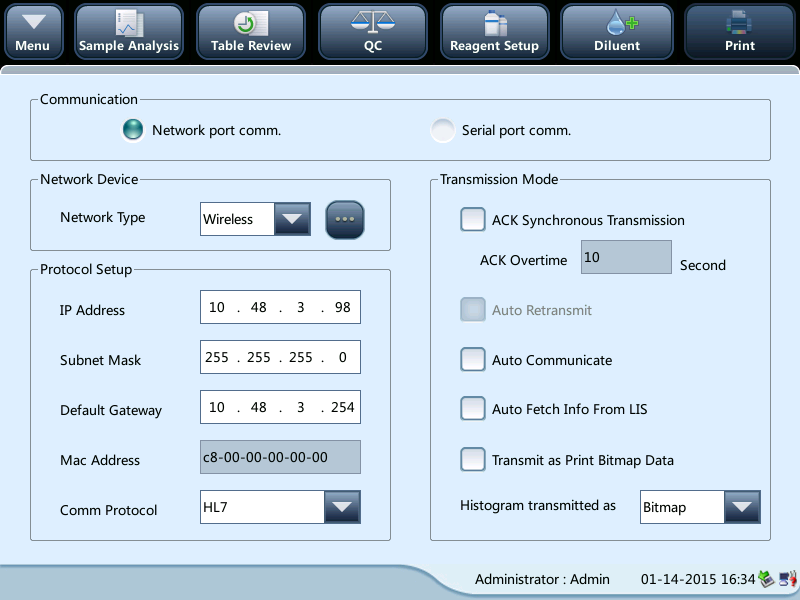
- On the BC-30s, tap Menu > Setup > System Setup > Communication to enter the communication setup screen.
- Set Communication to Network port comm..
- Under Network Device, select Wired from the "Network Type" pull-down list.
- Under Protocol Setup, enter a valid IP Address, Subnet Mask, and Default Gateway for your network. Contact your network administrator for appropriate values.
- For Comm. Protocol, select HL7.
- Navigate away from this screen e.g. tap "Table Review". When the save prompt appears, tap to accept.
Configuring the Automation Application
- In the Automation application, locate the Mindray BC-30s machine entry.
- Click the settings button and enter the IP Address of the BC-30s as configured on the machine. Use
5100for Port. - Once connected, the status should change from PENDING to CONNECTED. You can then proceed to send results from the machine.
The BC-30s operates in TCP server mode — the Automation application connects to the machine as a client. Ensure the IP address in the application matches the values configured on the BC-30s.
Sending Results
To send results from the BC-30s:
- On the machine, navigate to Table Review.
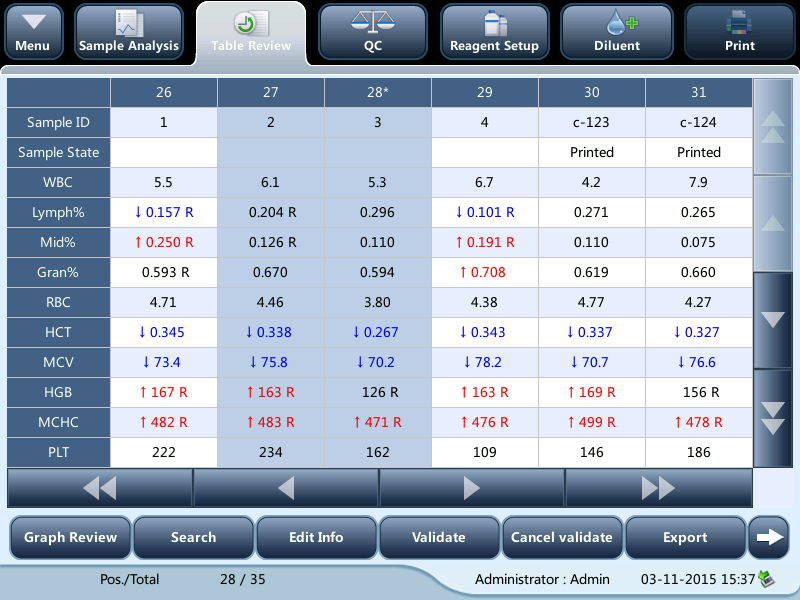
- Select the sample result(s) you want to transmit.
- Tap the Comm. button. A dialog box will appear.
- Select Selected to transmit only the highlighted samples, or All to transmit every result.
- Tap OK to start transmission.

- The results should appear in the Results tab of the Automation application.
Auto-Sending Results
The BC-30s can be configured to automatically transmit results once analysis is complete:
- On the BC-30s, navigate to Menu > Setup > System Setup > Communication.
- Under Transmission Mode, tick Auto comm..
- With auto communicate enabled, each completed sample will be sent automatically to the Automation application without manual intervention.
Troubleshooting
No data received in the Automation application
- Verify the Ethernet cable is firmly connected to both the machine and the network switch/router.
- Confirm the BC-30s and the computer are on the same local network. Verify the computer can ping the BC-30s.
- Ensure the IP address and port entered in the Automation application exactly match those configured on the BC-30s.
- Check that no firewall on the computer is blocking the connection on the configured port.
Status remains PENDING
- The Automation application connects to the BC-30s as a TCP client. If the status remains PENDING, the machine may not be reachable. Verify the IP address is correct and the machine is powered on.
- Try pinging the BC-30s's IP address from the computer to confirm network connectivity.
- Ensure no other application or LIS is already connected to the BC-30s.